

VRO Shader 1 v 1.0

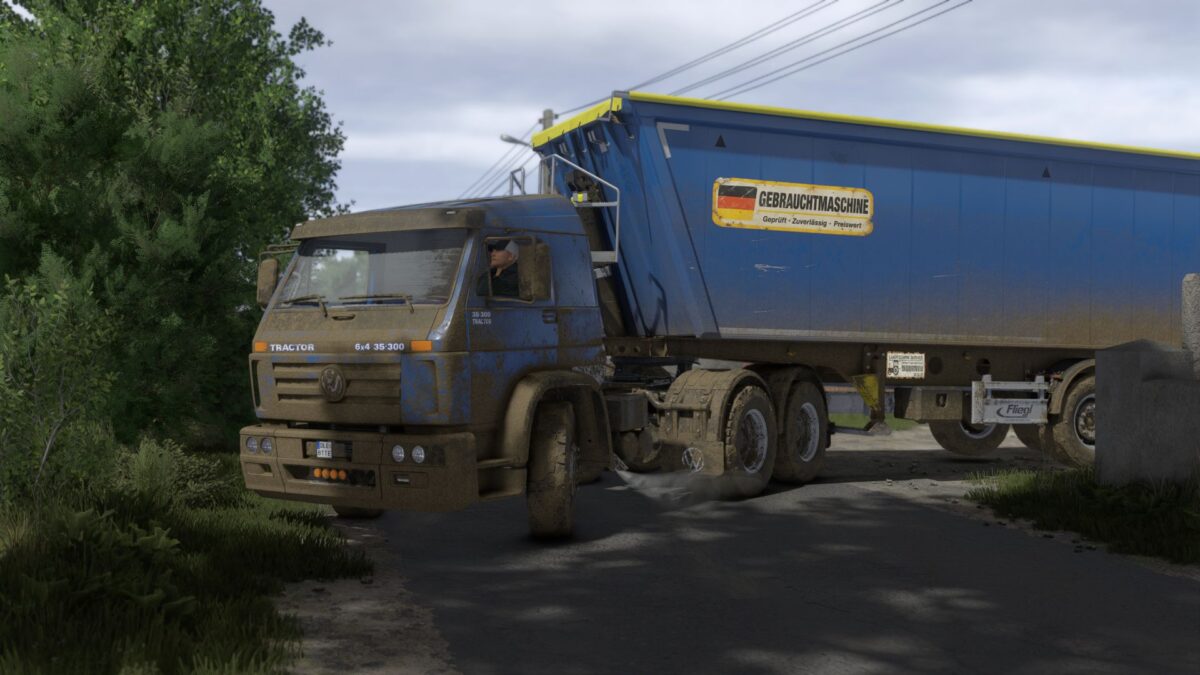
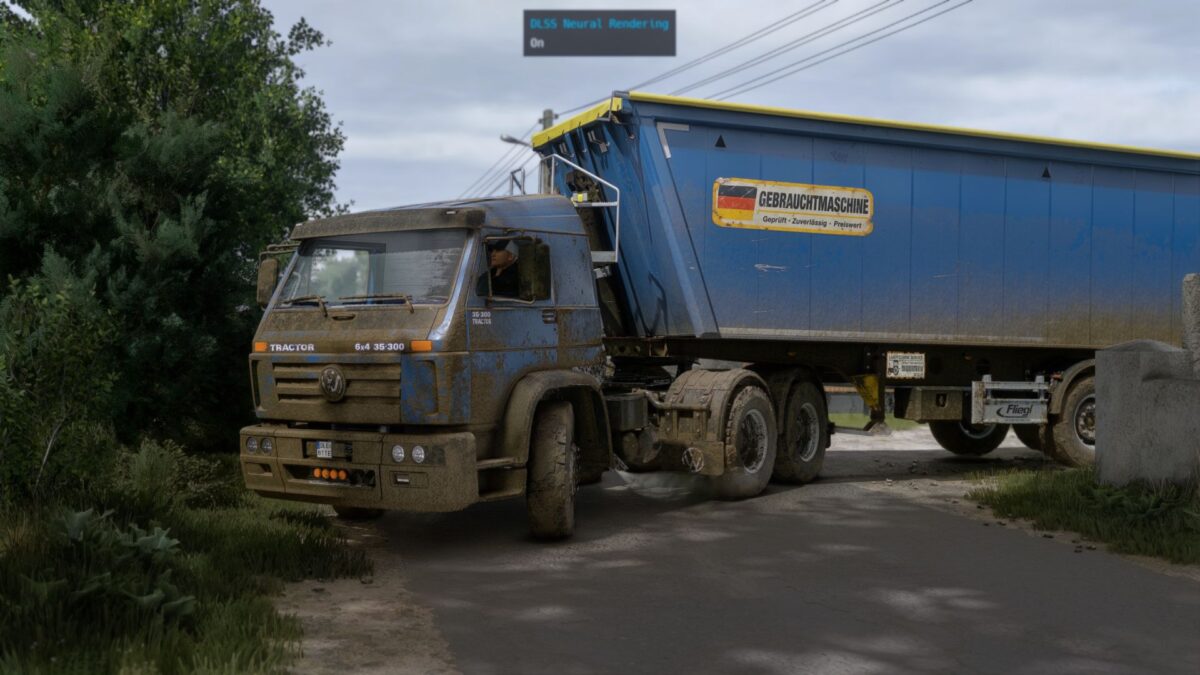
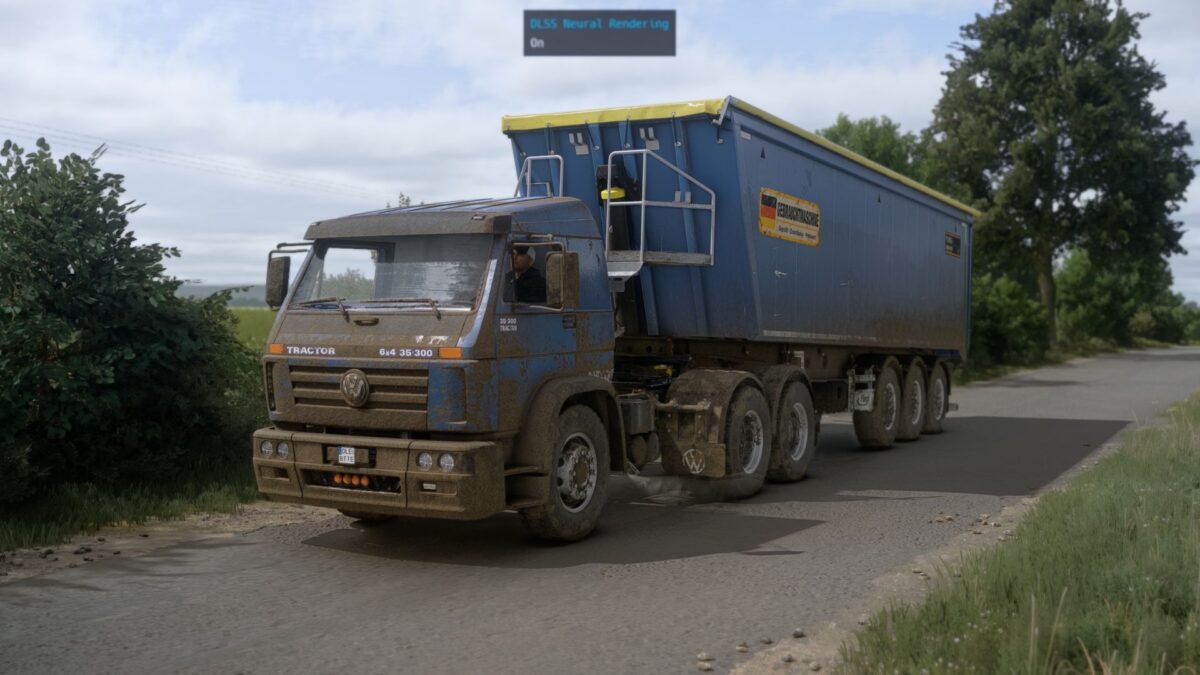

VRO Shader 1 v 1.0
Installation: copy the VRO_lightning folder to Documents/My Games/FarmingSimulator2025/modSettings/FS25_additionalGameSettings/lighting
Copy the VRO_Shader_1.ini file to Farming simulator 25/x64
Features
Cinematic and realistic image appearance
Improved lighting and atmosphere
More natural colors and contrast
Better visual depth during sunrise and sunset
Improved overall atmosphere in cloudy/rainy weather
Designed to preserve the natural look of the game without excessive saturation
Compatible with DLSS 5
Can also be used without DLSS 5
Requires ReShade 6.8.0
Recommended Setup
For the closest result to the screenshots included with this preset:
ReShade: 6.8.0
DLSS 5: Cinematic (optional)
Monitor in-game Brightness: 1.0
Lightning: Included file
Game: Farming Simulator 25
For the best experience, I recommend using the included Lightning file together with the ReShade preset, as both were designed to work together.
Required mods:
Additional Game Settings