

Vehicle configuration presets v1.0

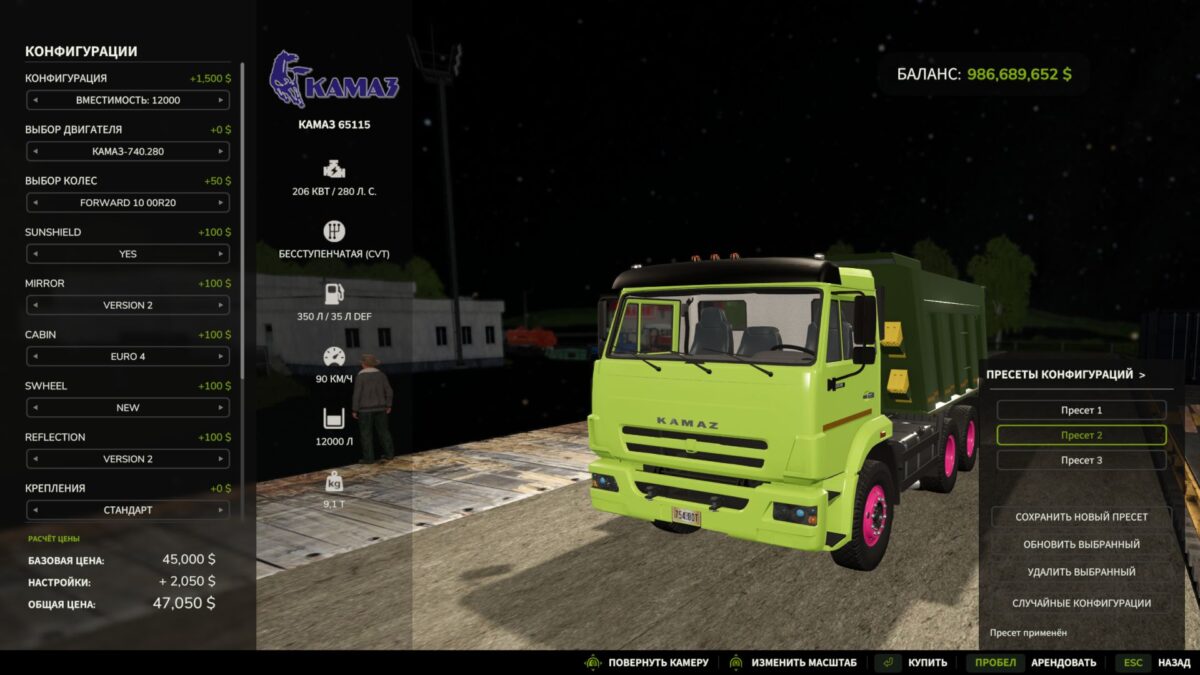
Vehicle configuration presets v1.0
Equipment Configuration Presets
Tired of choosing the wheels, engine, colors and dozens of additional options all over again every time? This mod allows you to save ready-made equipment configurations and apply them in the shop with a single click.
Features:
Save multiple named presets separately for each equipment model.
Save selected colors, including custom shades and materials.
Quickly apply a preset from a convenient scrollable list.
Update and delete saved presets.
Random configuration button — try a new variant and save the result you like.
Automatically update the equipment price and preview after applying the settings.
How to use:
Configure the equipment in the shop, open the presets panel, click “Save new preset” and enter a name. The next time you buy this model, simply select the saved variant from the list.
Features:
Presets are saved between game sessions and are available on different maps within the same profile.
Works with new equipment in the shop, including modded equipment using the standard configuration system.
License plates are not saved in presets!!!
After updating third-party equipment, its presets may need to be updated if the author has changed the configuration options.