
Garage Menu v1.0.0.5

FS25 mods

Garage Menu v1.0.0.5

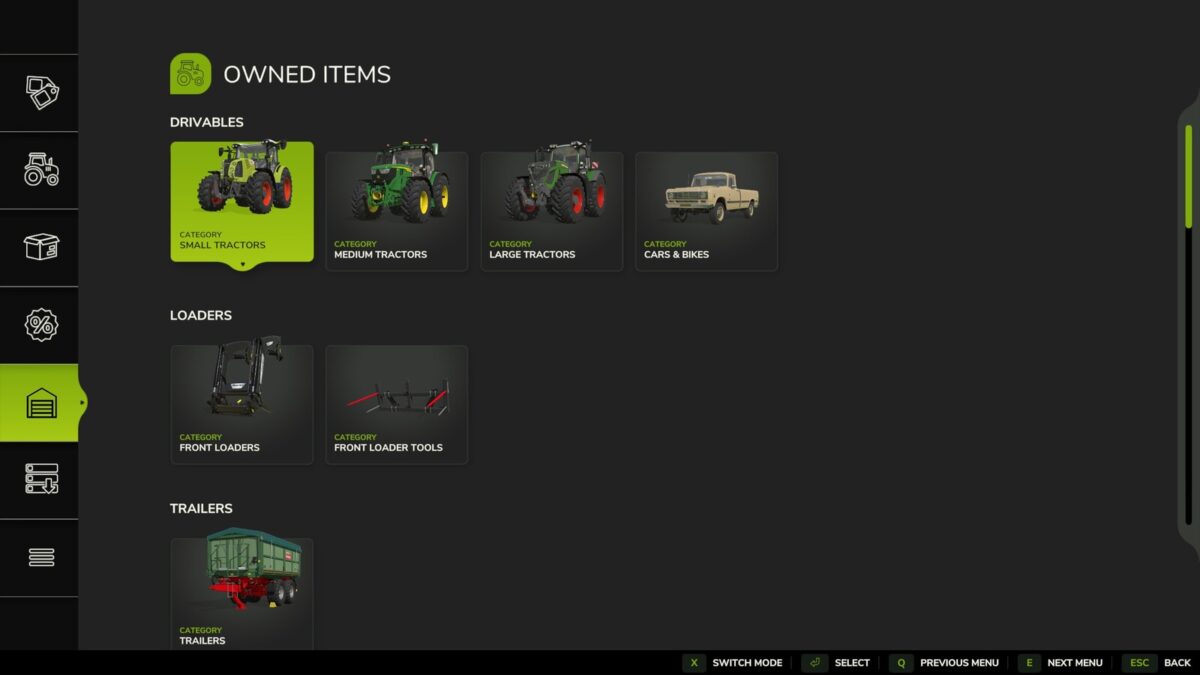
Garage Menu v1.0.0.5
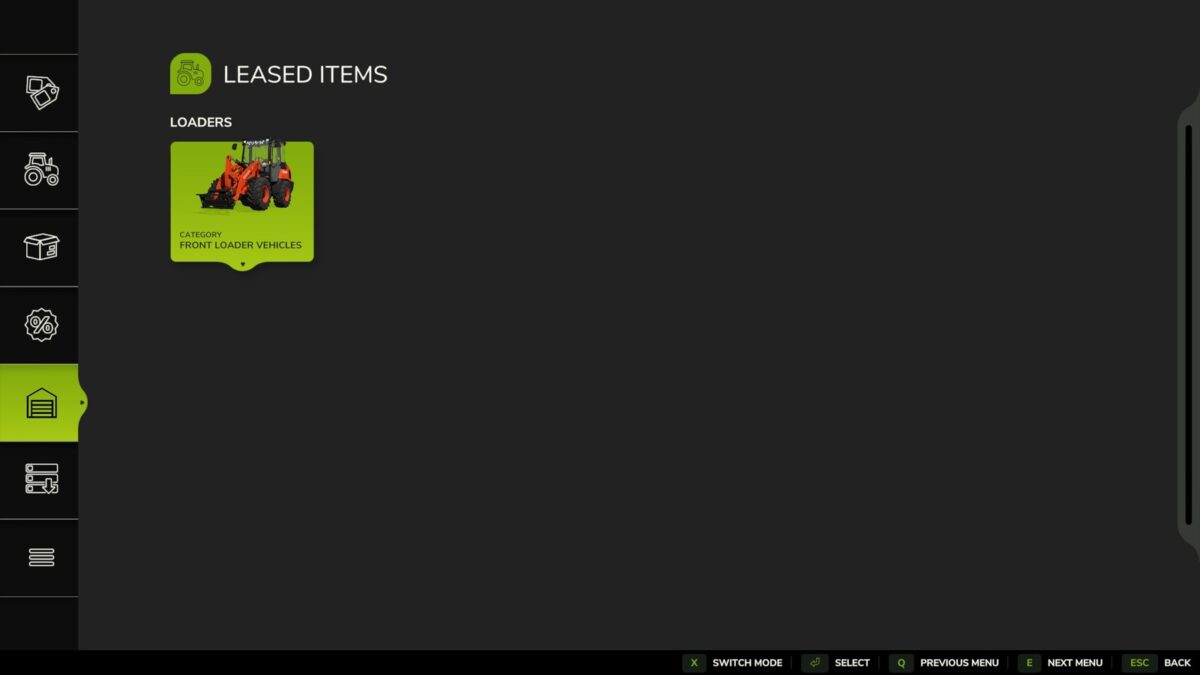
Garage Menu v1.0.0.5
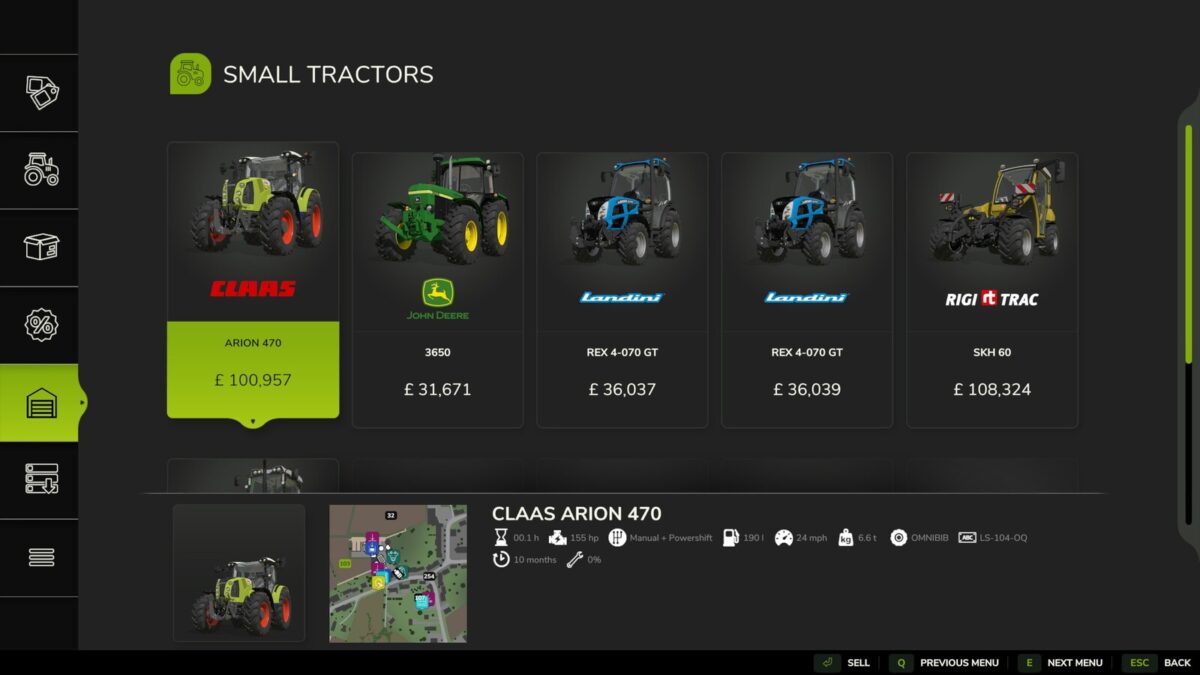
Garage Menu v1.0.0.5
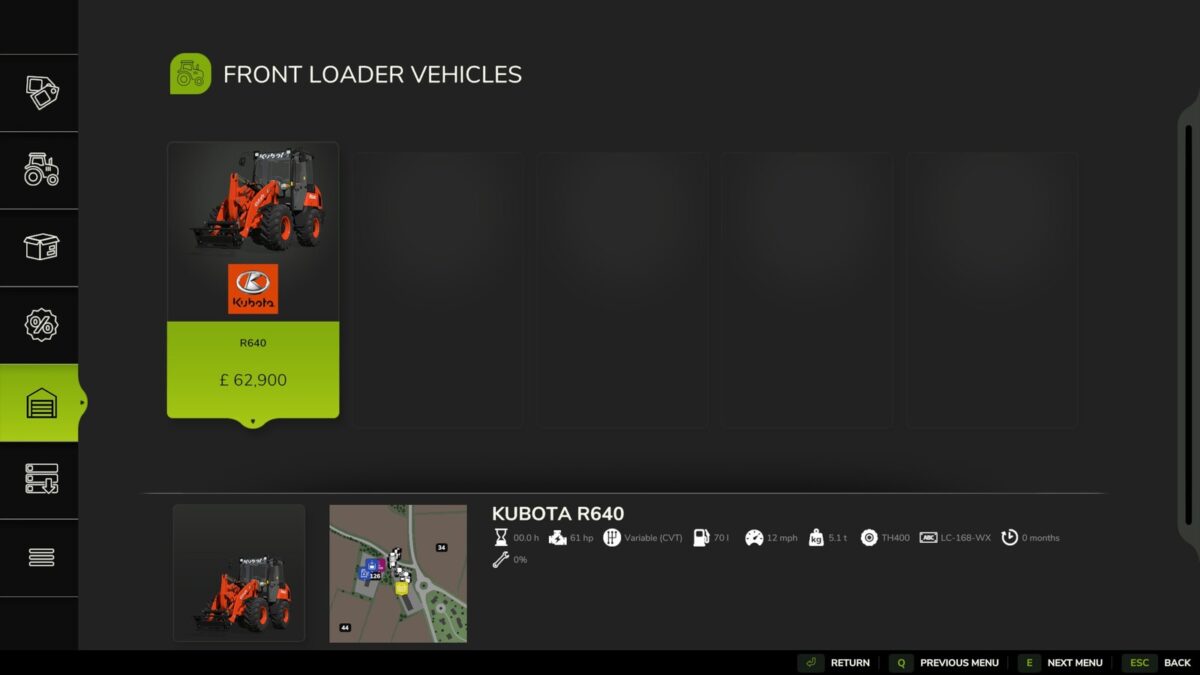
About the mod:

Garage Menu
A simple menu to view your owned and leased vehicles, similar to that seen in FS22.
GitHub: https://github.com/sprkem/FS25_GarageMenu
Changelog:
1.0.0.5:
– Fix a bug where an extra empty page showed when cycling the P menu with gamepad shoulder buttons.
1.0.0.4:
– Add additional guard to prevent issues with specific mod items.
– Fix back/next menu buttons not working when clicked.
1.0.0.3:
– Fix support for Buy Used Equipment.
1.0.0.2:
– Add safety guard to prevent issues with custom shop categories, specifically when using FS25_TakeSingleObjects.
1.0.0.1:
– If using the mod Buy Used Equipment, you can now see currently running searches in the garage menu.

Credits:
Ozz

How to install FS19 mods?

Firstly find a mod which you like and want to download. Then download a mod to your PC. Mods are usually in .zip format file. But sometimes it can be in .rar. If a mod file is a .zip format no needed additional actions. If a file is in .rar, then you must unarchive mod with software like WinRar or Zip7. Windows 10 users no need to use software for archives, Win10 itself has a feature to unarchive files.

The next step is to find mods folder in your PC. Usually, it is in Documents/My Games/Farming Simulator 19/2019. Open the "mods" folder and put downloaded .zip archive or unarchived .rar file to this folder.

Last step. Enjoy of FS19 mods!

Leave a Reply

Your email address will not be published. Required fields are marked *