

Agri-Drone S-Series v1.0.0.0

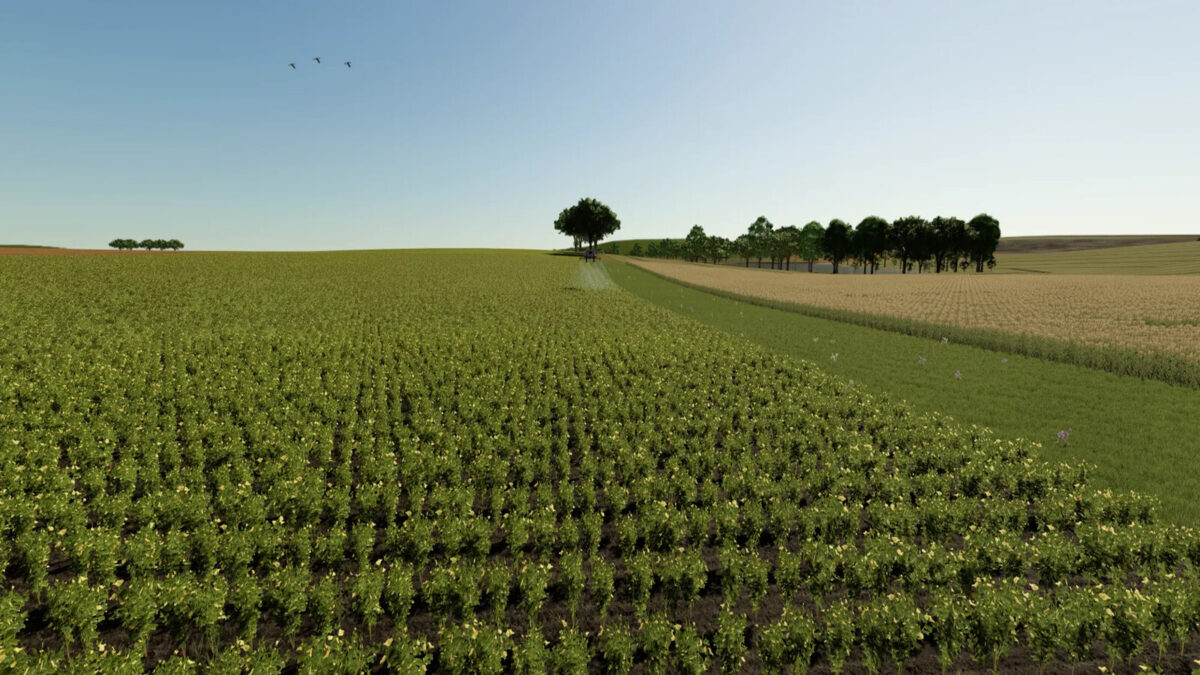
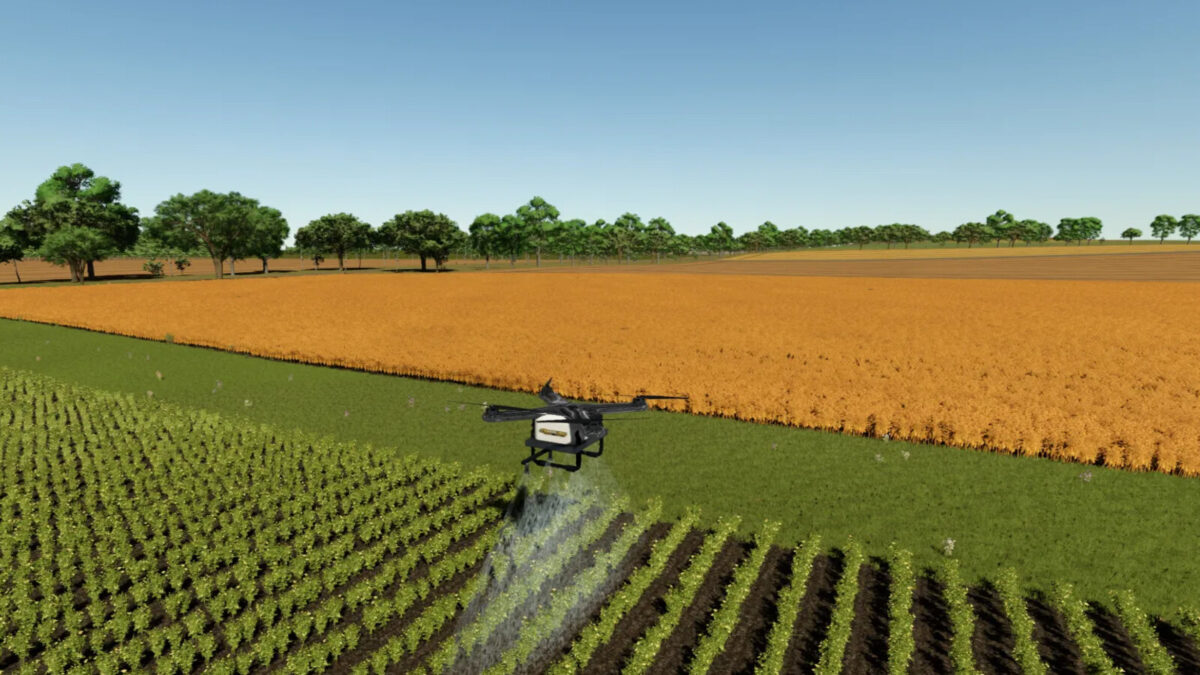
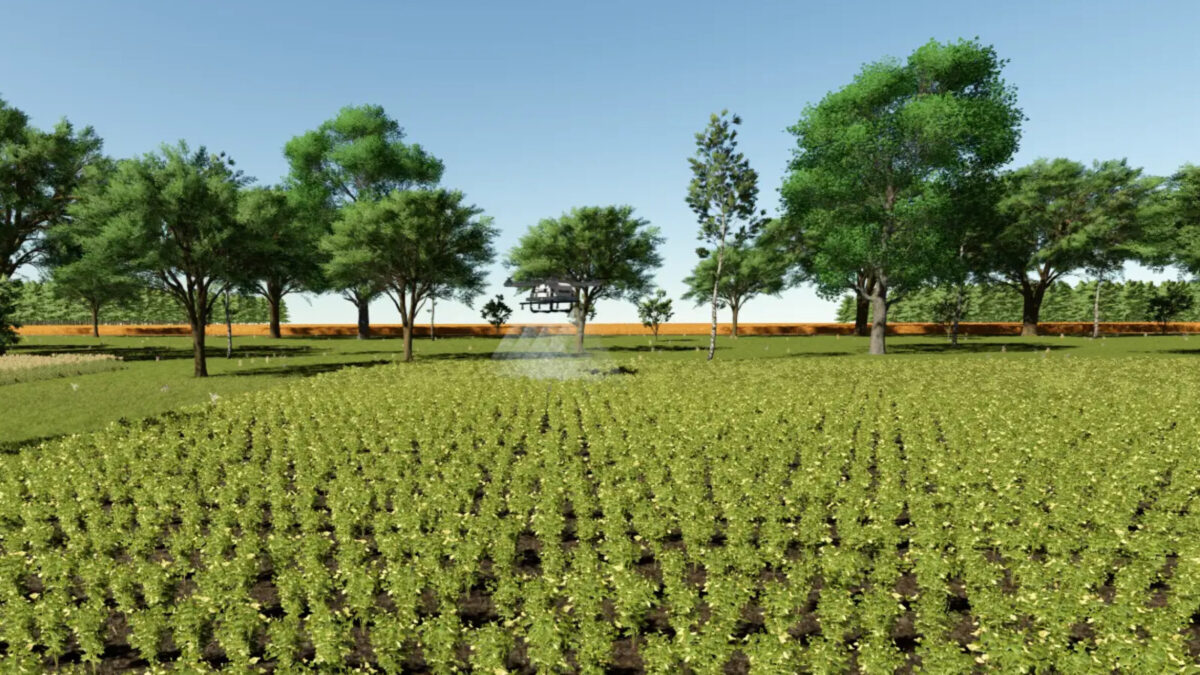
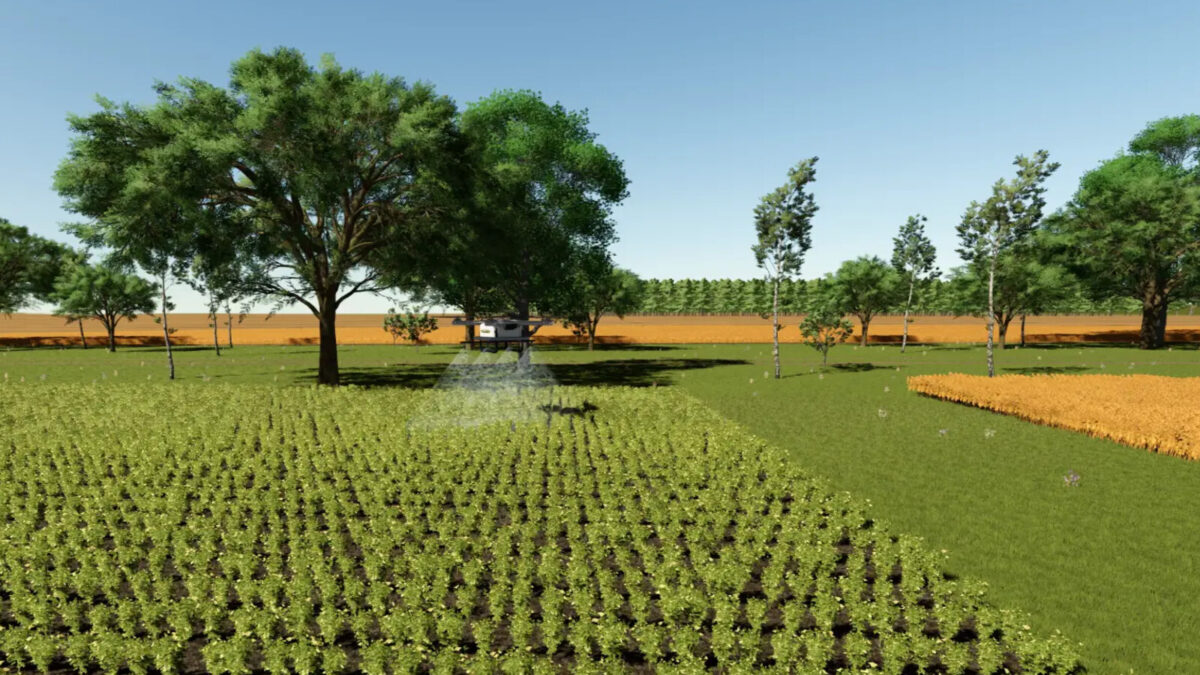
Agri-Drone S-Series v1.0.0.0
Agri-Drone S-Series
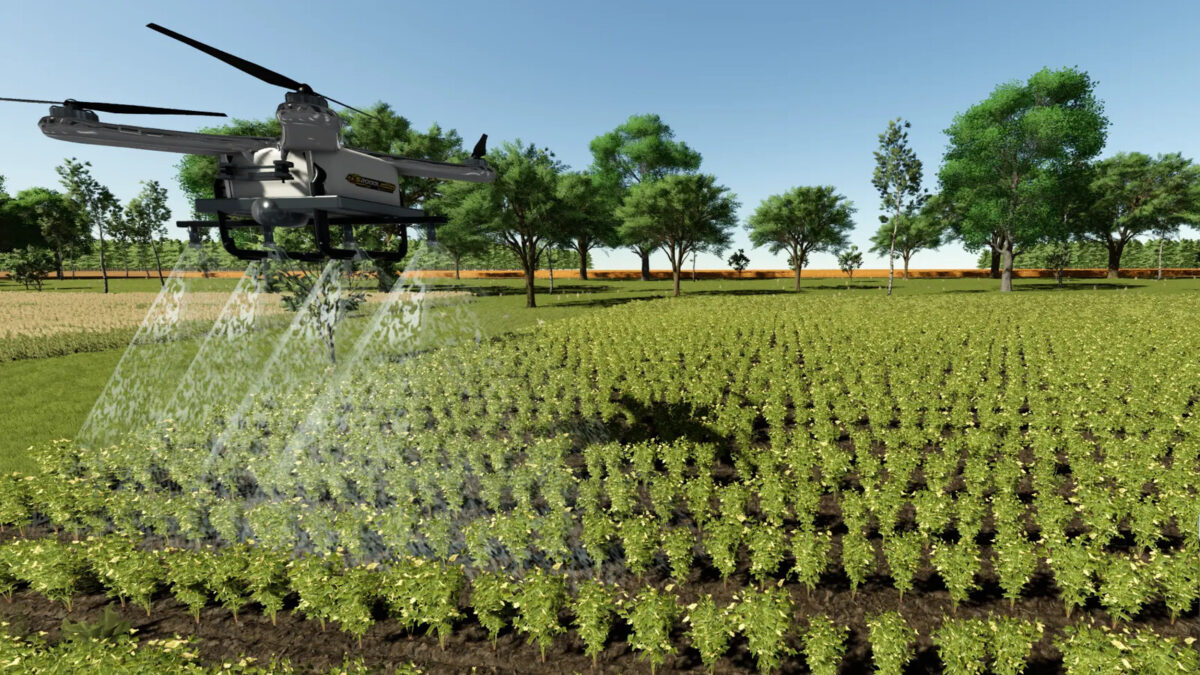
Take agricultural work to the air with the Agri-Drone S-Series, a fully electric spraying drone for Farming Simulator 25. Fly it by hand, or let it work a whole field on its own – alone or together with a fleet of drones.
Shop items
Agri-Drone S-Series
Category: Sprayers
Price: from $22,000 (see the models below)
S-Series Battery Pack
Category: Miscellaneous
Price: $4,800
Landing Pad
Category: Decoration
Price: $1,500
Daily upkeep: $0
Charge Hub (multi-vehicle, 50 m)
Category: Miscellaneous
Price: $4,000
Daily upkeep: $4
Multiplayer: this mod is single-player only.
Models (one shop item, chosen in the configuration)
– S45L: 45 L tank – $22,000
– S70L: 70 L tank – $26,000
– S100L: 100 L tank – $31,000
– S2000L Unreal: 2,000 L tank, chrome finish – $40,000
All models have the same working width, flight performance and autonomous functions. The model changes the tank capacity, size and label.
Liquid spraying
– Liquid fertilizer, herbicide and other liquid products of the sprayer category
– 10 m working width, calibrated 14 L/ha application rate
– Works with Precision Farming: with PF installed the drone follows PF’s own variable rate and nitrogen map
– Remaining product can be unloaded into a pallet
Manual flight
– Full movement, turning, ascent and descent controls
– Terrain-relative altitude hold and ground safety assistance
– Integrated altitude and sprayer status display
– Nose and tail cameras next to the chase view
Autonomous field operation
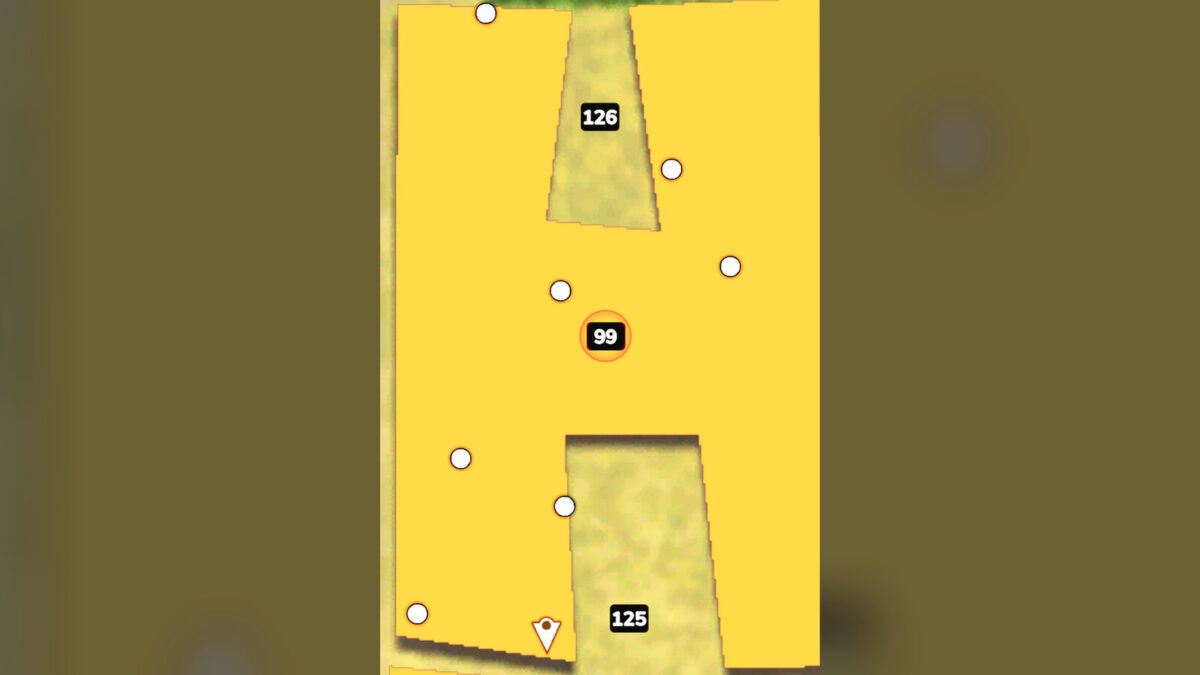
Press H over a field and the drone detects it, plans its passes, takes off, sprays only while working, turns between passes and flies home when it is done.
– Continuous, rounded flight path with a headland pass along the field edge
– Reads the real field condition: skips areas that are already treated, continues work started by another vehicle and picks up unfinished work after a savegame is reloaded
– Works base game contracts: the field list shows contract fields and their type
– Several drones share one field (their own share of the plan, keeping apart from each other); one key starts a whole group, another sends them all home
– Fly to any field with the field transit, following the terrain at the chosen altitude
– Returns home when the battery reaches reserve or the product is used up, and resumes after refilling or a fresh battery
On-screen control panel (Alt+5)
– JOB page: field list with distance, contracts and saved jobs, work speed, transit speed, altitude, number of drones, headland
– PADS page: mark landing pads and home spots, name them, choose a home for each drone
– FLEET page: every drone with status, battery and home, check boxes to start, send home or move several at once, jump into a drone
– The panel can be dragged anywhere, minimised to a status strip or closed
Landing pad
A 4 x 4 m landing pad (decoration) is also in the shop. Drones recognise it as a landing and home spot.
Charge Hub
A multi-vehicle charging station (placeable) charges up to 64 electric vehicles at once, each in its own spot across a 50 m area – no queueing at a single plug.
Electric battery system
– Rechargeable 24 kWh battery
– Physical removable battery packs: buy and carry spare packs and swap them at the drone
– Automatic return at reserve level, work continues after the swap
Speeds
– Autopilot transit speed: up to 99 kph
– Autopilot working speed: up to 74 kph
– Both are set on the panel or with the keys below
Default keyboard controls
W / S – fly forward or backward
A / D – turn left or right
Page Up / Page Down – ascend or descend
B – turn the sprayer on or off
H – start or stop autonomous field operation
I – unload the remaining product
Alt+5 – open or close the control panel
Shift+T / Shift+U – field transit: start / cancel
Shift+R – fly back to the starting point
Ctrl+Alt+R / Ctrl+Alt+B – start a group of drones / send all drones home
All controls can be changed in the game’s control settings.