

Draw Distance v 1.0

Draw Distance v 1.0
Extends the existing Object Draw Distance option in the Graphics settings with additional draw-distance presets.
Presets:
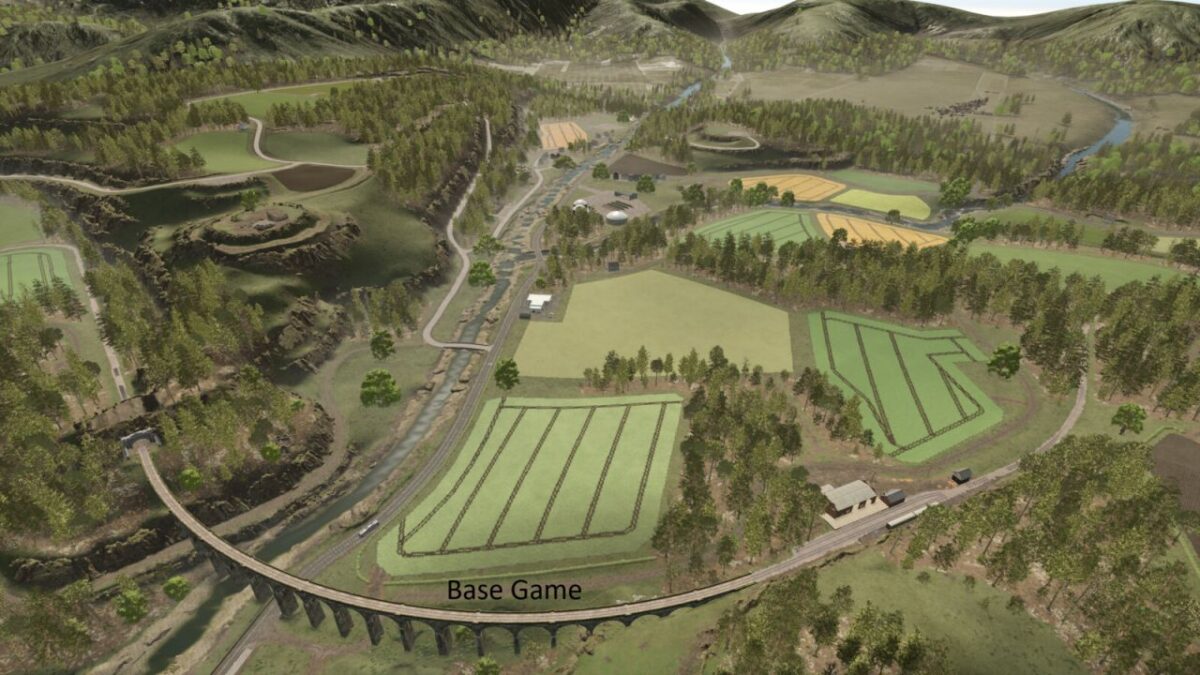
– Base Game
– Enhanced (200%)
– Extended (250%)
– High (300%)
– Very High (400%)
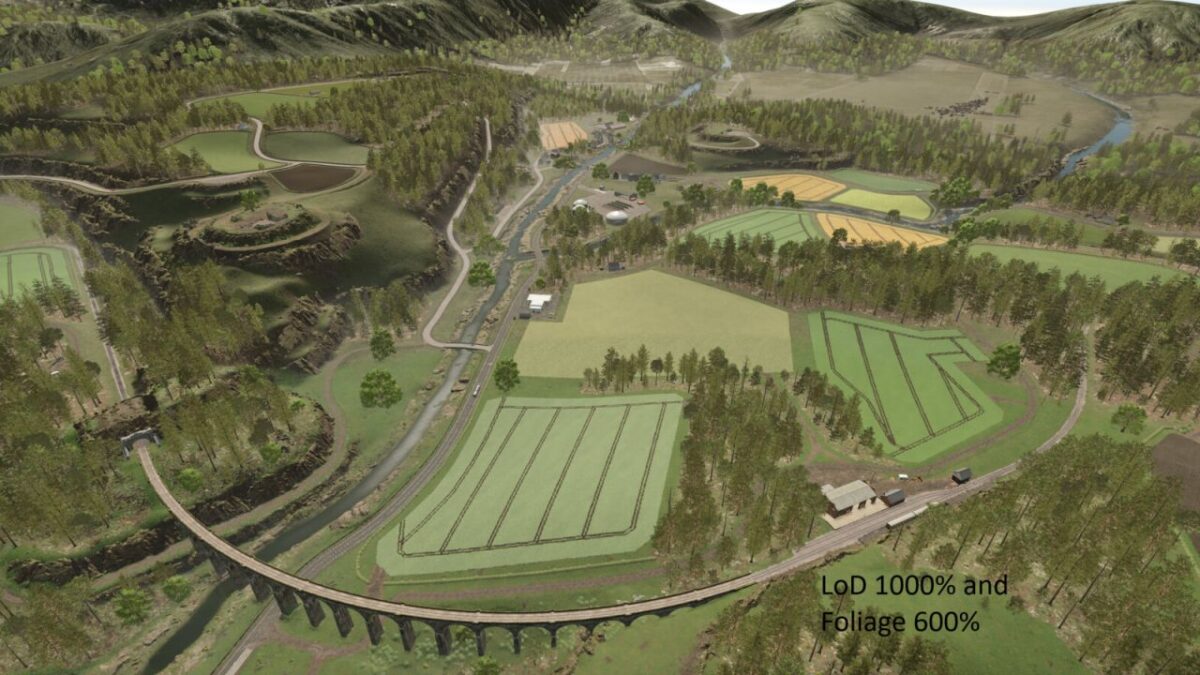
– Ultra (600% objects/LOD and foliage)
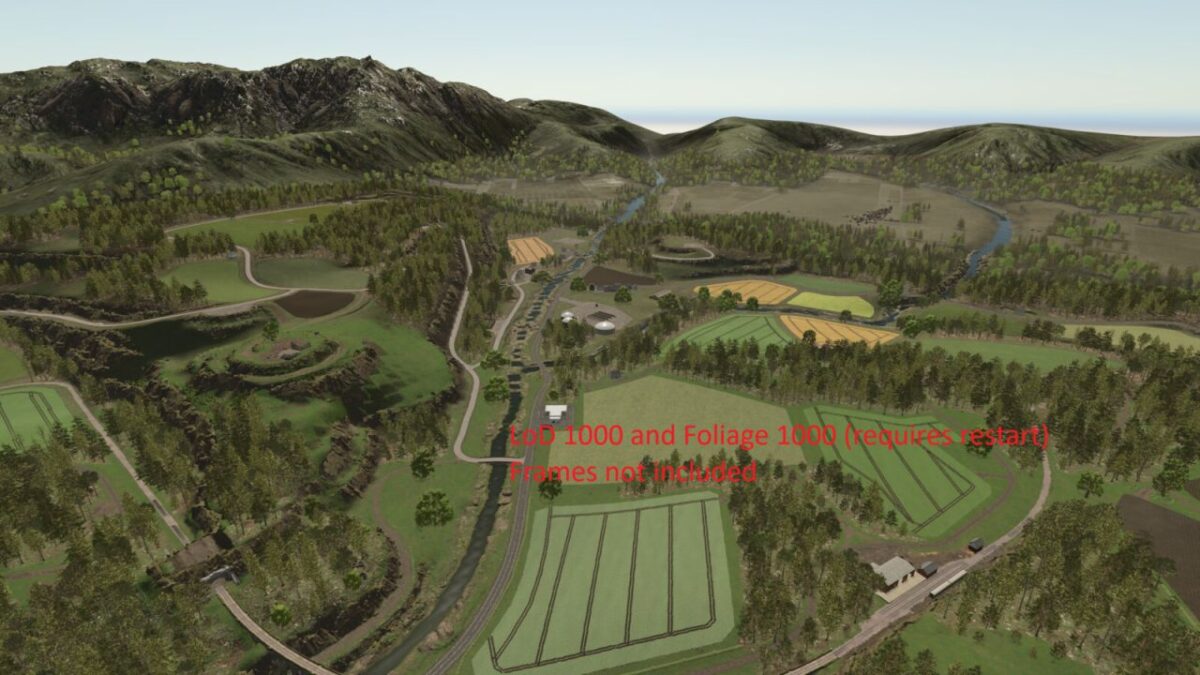
– Extreme (1000% objects; foliage limited to 600%)
Base Game keeps Farming Simulator’s own configured draw-distance values. The selected Draw Distance setting is stored in the standard modSettings directory and is shared across career saves.
Console commands:
– ddInfo
– ddPreset [1-7] – ddSet object lod terrain ground foliage foliageLod
– ddFoliage percent [optional LOD percent] – ddReset
The ddFoliage command supports experimental values from 10% to 1500%. Values above the currently reserved foliage capacity usually require one save reload and may increase memory use or cause instability on some maps.
Higher presets can significantly reduce performance and increase video-memory usage, especially on large or highly detailed maps.
Ground displacement/detail distance is not exposed to Lua in the current game build and remains controlled by the base game.