

Terrain Texture And Object Picker v2.2.0.0

Terrain Texture And Object Picker v2.2.0.0
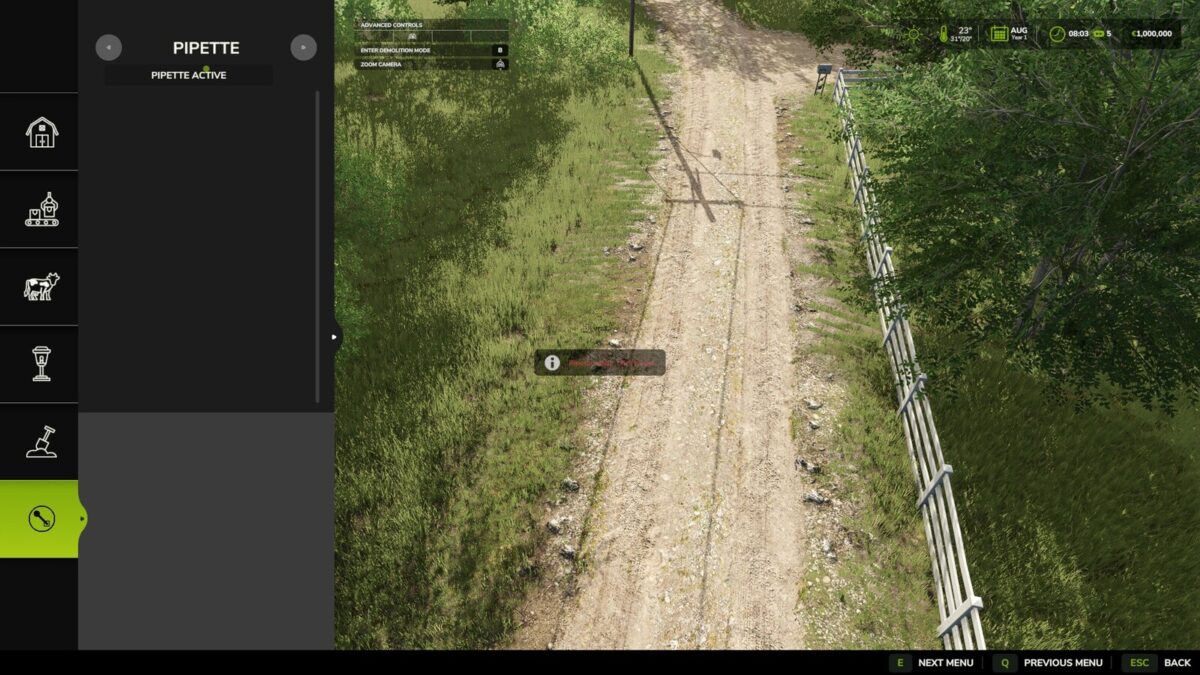
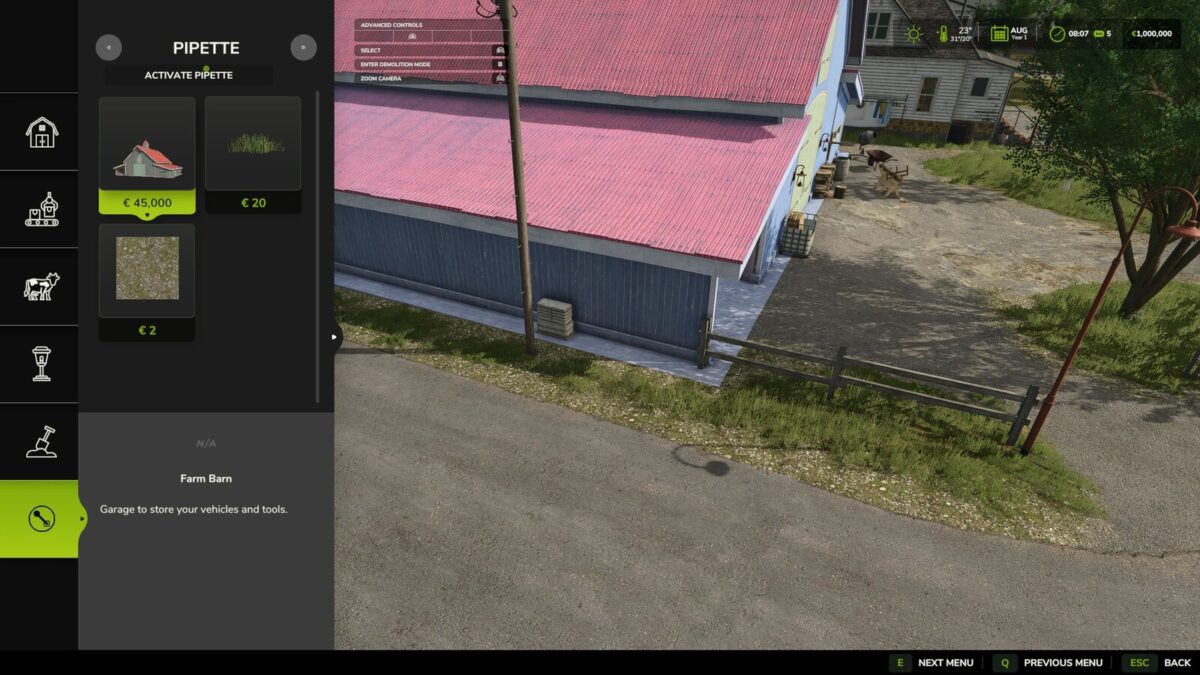
Terrain Texture And Object Picker adds a pipette function for ground textures, foliage, bushes, trees and supported placeable objects to the construction menu.
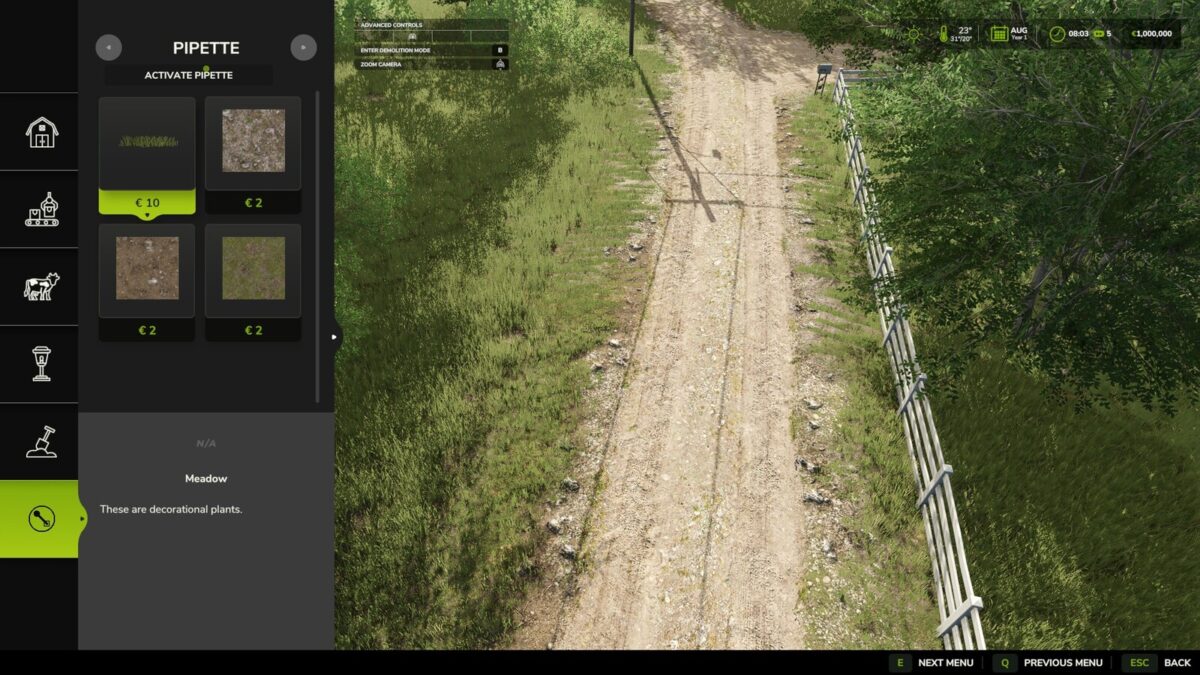
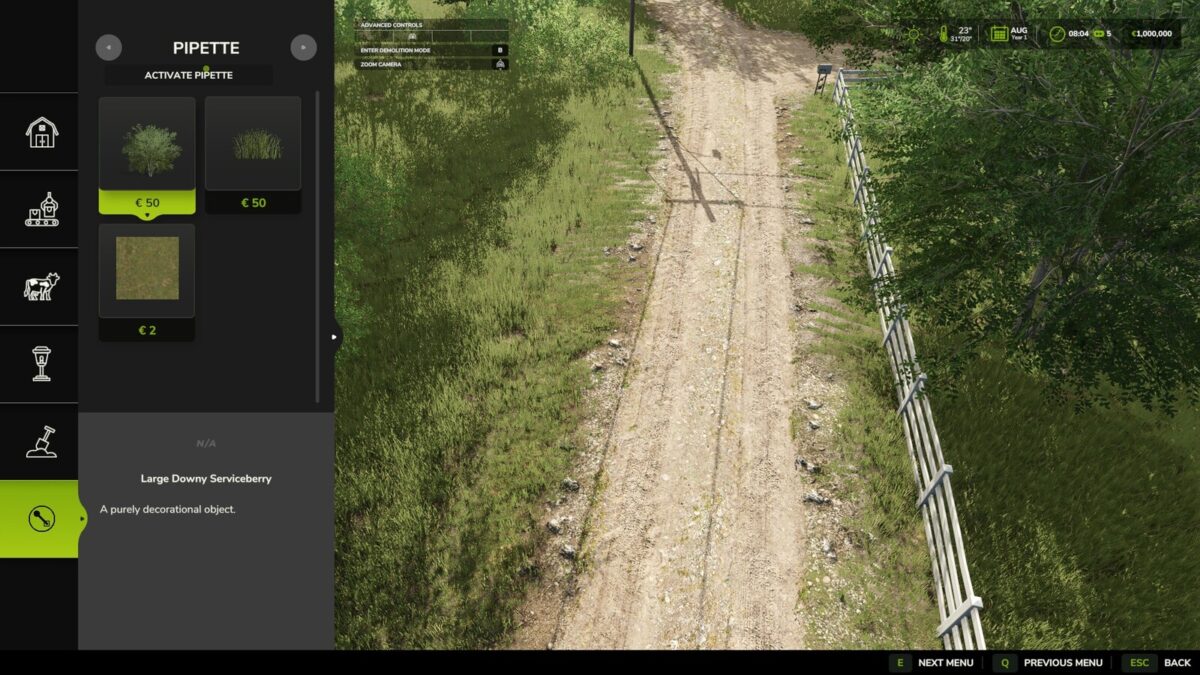
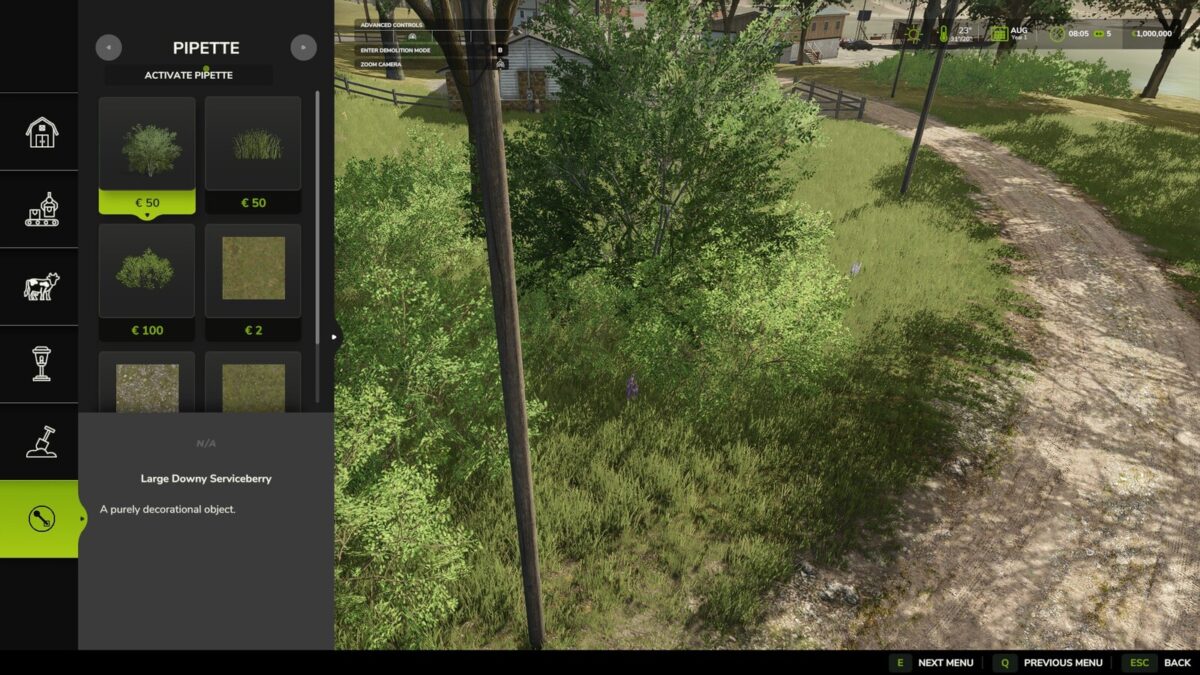
It allows previously used paint textures, visible foliage such as grass, flowers and bushes, placeable trees and supported objects to be picked directly from the map and found again in the construction menu. In mixed areas, several matching results can be shown.
How to use:
1. Open the “Pipette” tab in the construction menu.
2. Press the “Activate pipette” button.
3. Click a ground texture, foliage, a bush, a tree or a supported object.
4. Confirm the desired result in the construction menu.
5. Paint or build as usual.
If needed, the pipette can be activated again at any time. The active brush is reset before picking.
The mod considers available ground textures and suitable foliage of the current map. Map foliage is detected without loading additional entries into the regular construction menu unchecked.
Search:
The “Search” tab (right next to “Pipette”) lets you search the entire construction menu by keyword. Multiple words can be entered in any order, results are sorted by relevance. For general search terms, the search recognizes connected groups of objects – currently trees and husbandry as the first examples – even when the term doesn’t literally appear in the name. This recognition will be extended to more areas over time.
Credits:
Thanks to PeterPwn247 for “All Decorative Foliage” and to modelleicher (Farming Agency) for “All The Ground Textures Ingame”. Both mods helped with understanding how map content can be made available in the construction menu.
GitHub: https://github.com/Nalathan01/FS25_TexturePipette/issues
Changelog 2.2.0.0:
– Fixed log error messages while picking that could occur on maps with incorrectly registered foliage layers.
– Internal rework: removed obsolete diagnostic code and updated error handling to current GIANTS requirements.
Changelog 2.1.0.0:
– New “Search” tab in the construction menu: searches all categories by keyword, order-independent, sorted by relevance.
– First connected object groups recognized for search: trees and husbandry are found even without a literal name match.
– StoreItems from new prefab/map templates are now found reliably, even when paths differ in capitalization.
– Trees without a clear match to a construction-menu entry no longer show up as a broken tile, only as a status message.
Changelog 2.0.0.0:
– Renamed to Terrain Texture And Object Picker.
– Extended detection of bushes and trees.
– Improved detection for ground textures, foliage and supported construction-menu entries.
– Improved map foliage detection for additional map content.
– Removed the previous debug mode because it produced excessive log output during normal gameplay.
Changelog 1.3.0.0:
– Added detection support for placeable trees.
– Improved detection of placed objects, foliage and ground textures.
Changelog 1.2.0.0:
– Added detection support for foliage such as grass, flowers and bushes.
– Map foliage is added as paintable construction-menu entries where possible.
– Added a combined result list for foliage and ground textures.
Changelog 1.1.0.0:
– Added detection support for suitable placeable objects.
– Improved pipette handling: activating the pipette again clears the previous selection.
– Added general settings for enabling the pipette function and free painting.