

Vehicle Selector v1.0.0.0

Vehicle Selector v1.0.0.0
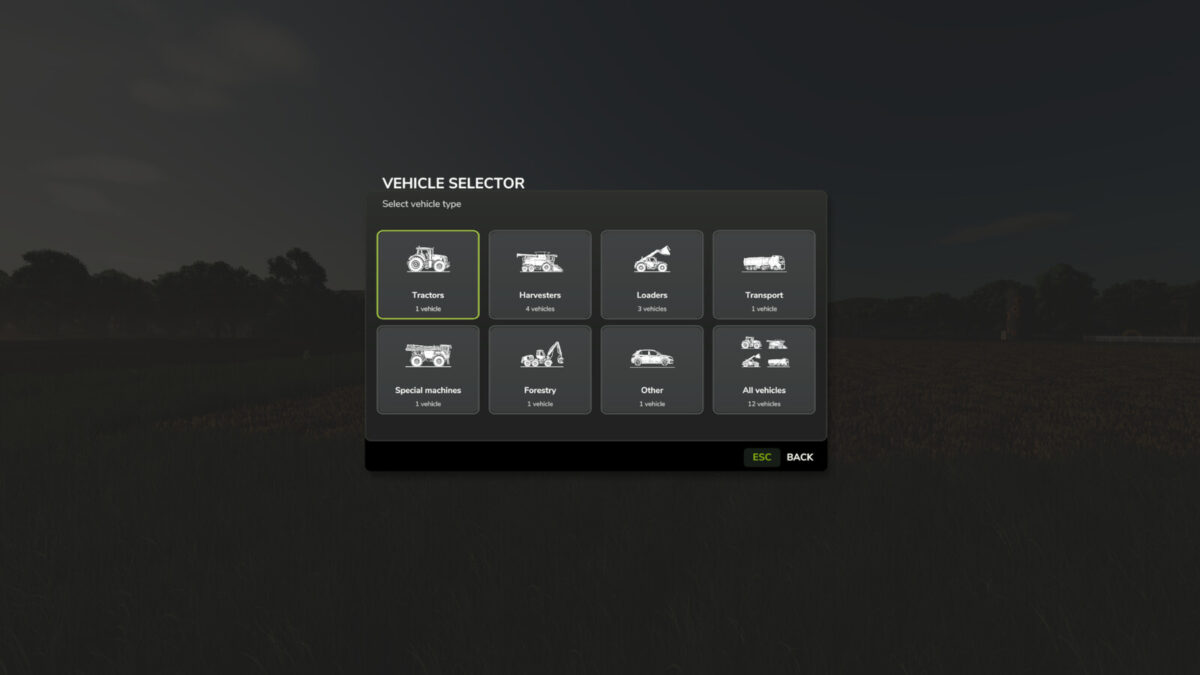
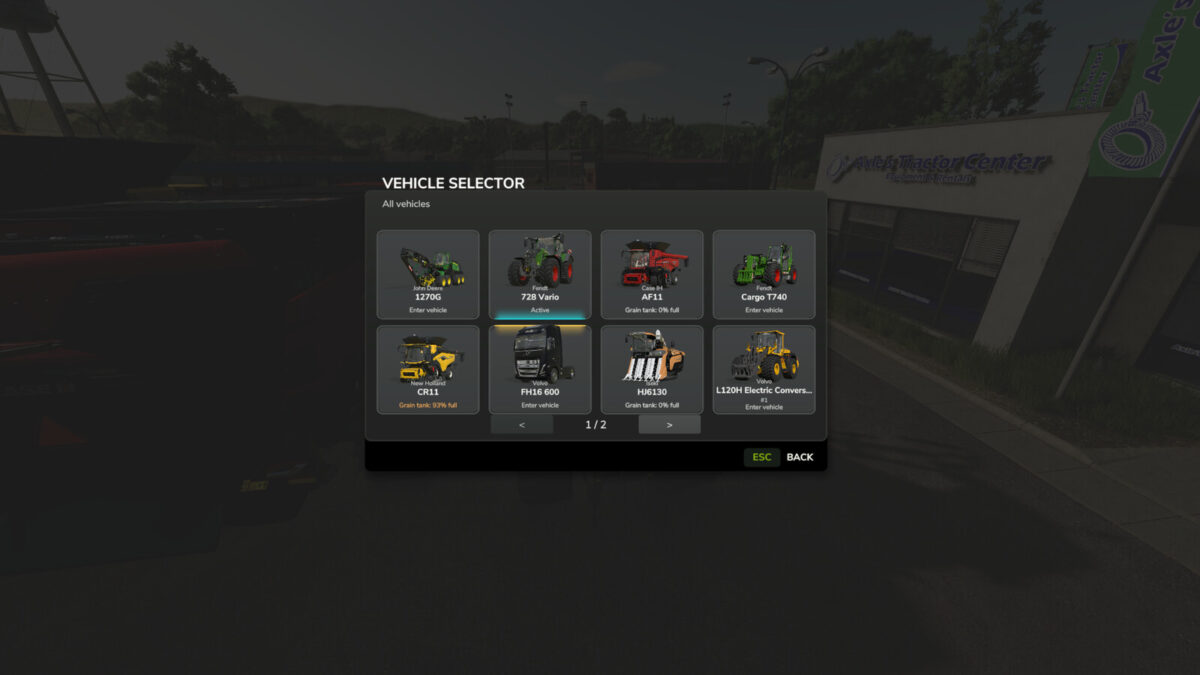
Vehicle Selector provides a fast and clear way to display all enterable vehicles on your farm and switch directly into the vehicle you want with a single click.
Open the menu with Left Alt + V. Then simply click a vehicle tile to close the menu and switch directly into the selected vehicle.
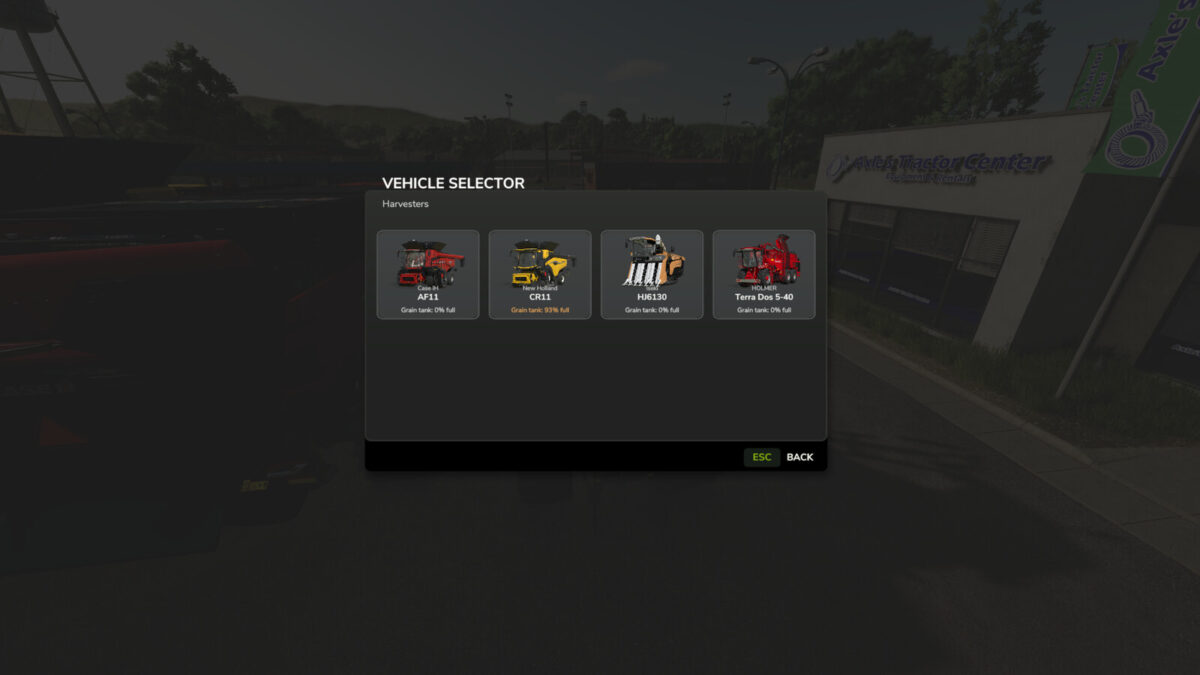
Vehicles are automatically grouped into tractors, harvesters, loaders, transport, self-propelled/specialized machines, forestry and other vehicles.
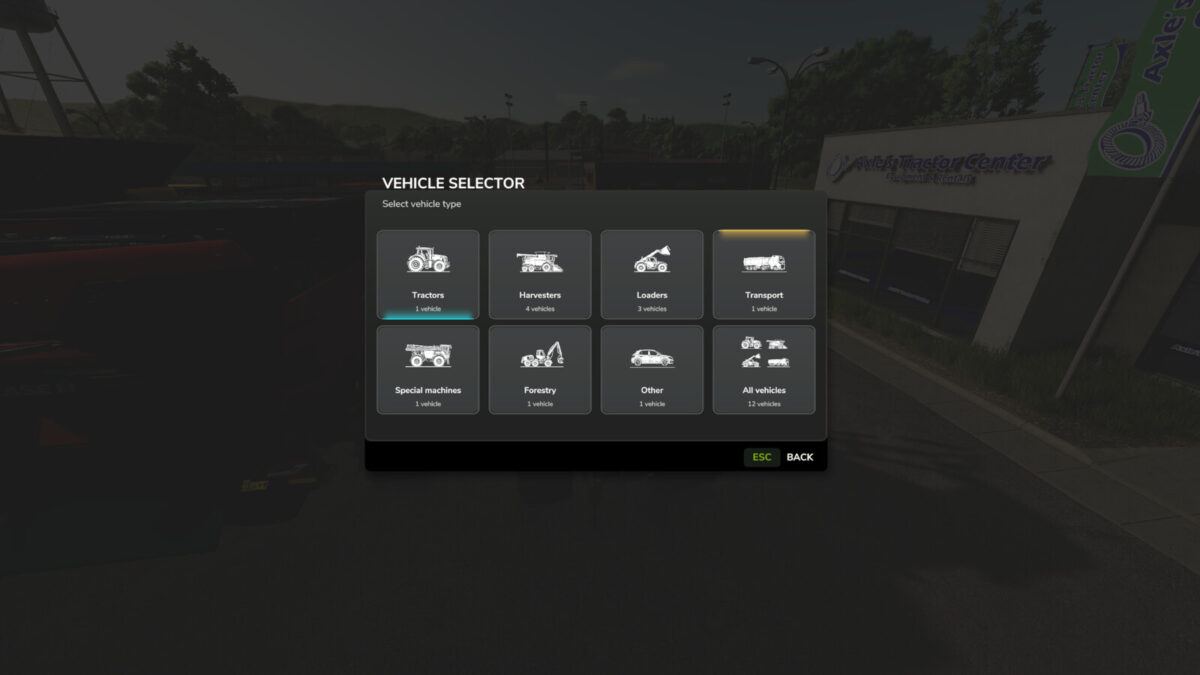
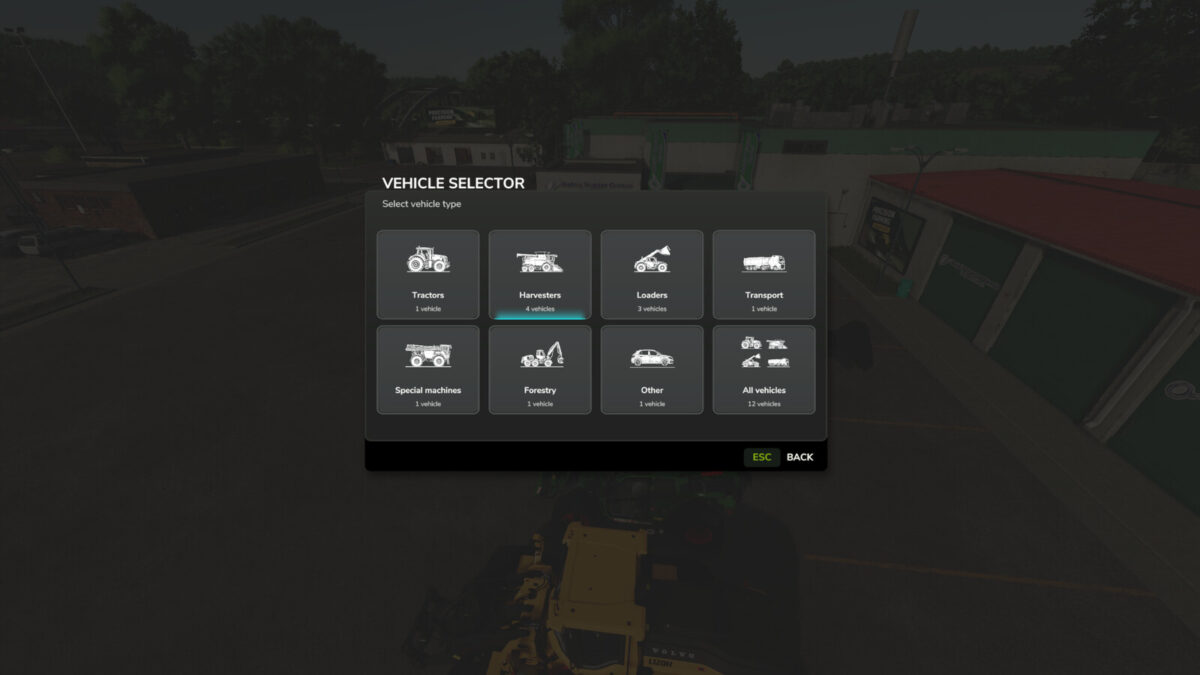
The currently controlled vehicle is highlighted in cyan, while vehicles with an active AI worker are highlighted in yellow. This lets you immediately see which machines are currently in use.
Harvesters with a limited internal grain tank also display their current fill level directly on the vehicle tile, including color-coded warnings as the tank fills.
Manufacturer and model are displayed on every tile. Larger vehicle fleets are automatically spread across multiple pages.
Tip: For especially fast access, Vehicle Selector can also be assigned to a mouse thumb button or another freely configurable key.
The standard TAB vehicle switching remains unchanged.